MCP Integration Setup
AskSenseOps supports integration with MCP (Model Context Protocol) clients, allowing you to access AskSenseOps tools through supported client applications.
The connection instructions for each client are available directly in the AskSenseOps Web Server admin interface. You can use these instructions to obtain the connector URL and follow the setup procedure for your preferred client.
Before configuring an MCP client, ensure that:
- The AskSenseOps Web Server is installed and running.
- The initial AskSenseOps setup is complete.
- You can access the AskSenseOps admin interface.
Access the MCP Client Instructions
Follow these steps to find the connection details and instructions for your MCP client.
- Open AskSenseOps in your browser and sign in.
- Navigate to Admin.
- Under Operations, select MCP clients.
- Open the Clients tab.
- Click How to connect a client.
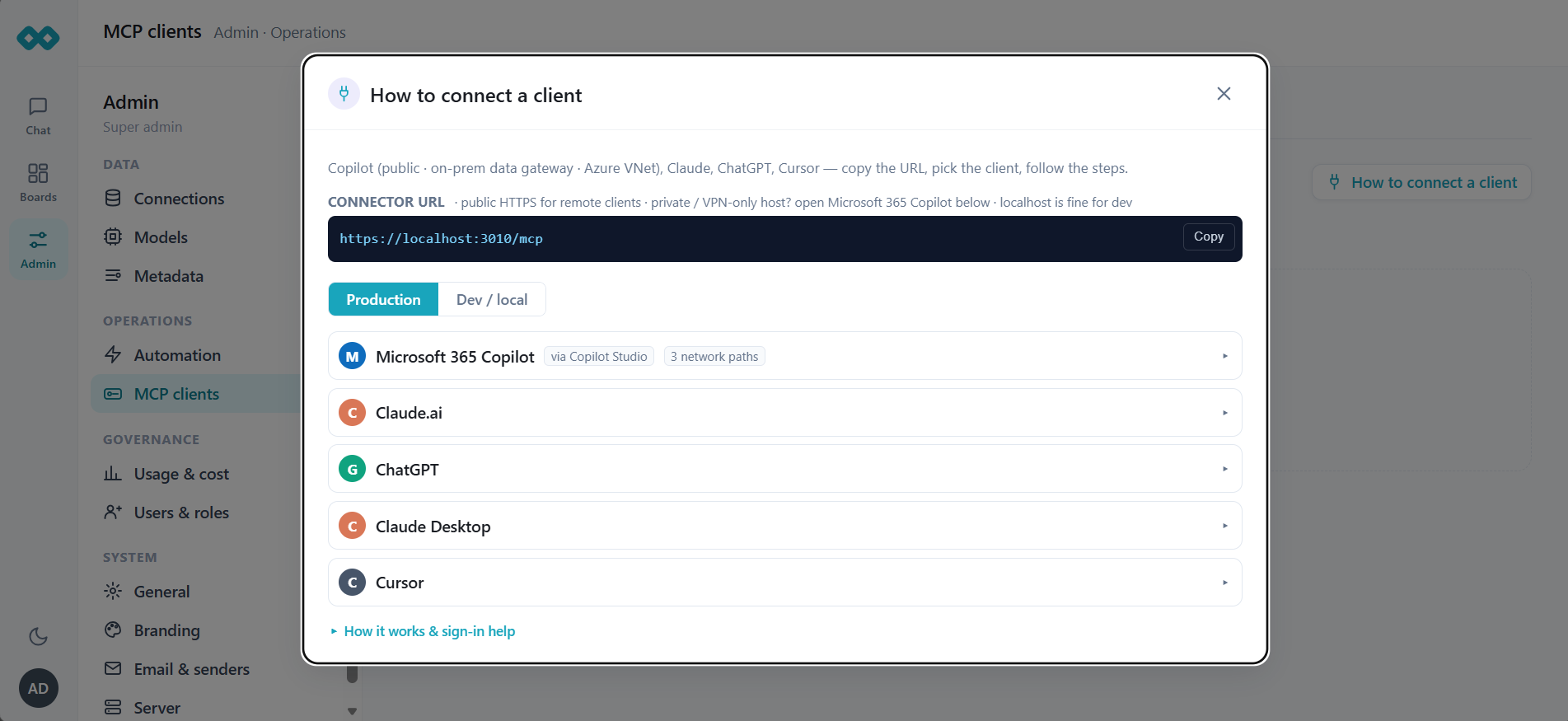
The How to connect a client dialog displays the connector URL and setup instructions for the supported clients.
Connector URL
The dialog displays the MCP connector URL, which you can copy using the Copy button.
For local development, the URL may use localhost. For remote clients, use the publicly accessible HTTPS URL of your AskSenseOps server. If the server is available only through a private network or VPN, follow the relevant network configuration instructions for the selected client.
Use the Production and Dev / local options in the dialog to view the appropriate connection instructions for your environment.
Configure Your MCP Client
In the How to connect a client dialog, select your client to view its specific setup instructions.
Claude.ai
- Open Claude connectors.
- Select Add custom connector.
- Paste the AskSenseOps connector URL.
- Add the connector.
- When prompted, select the connection on the login page and click Authorize.
Once authorized, the available AskSenseOps tools appear in the connector menu.
For Team or Enterprise plans, an organization owner may need to add the connector for the organization. The availability of custom connectors depends on the Claude plan.
ChatGPT
- Enable Developer Mode. Business workspaces may require administrator approval.
- Open ChatGPT and navigate to Settings, select Connectors, and then select Create.
- Paste the AskSenseOps connector URL.
- Complete the authorization process.
After authorization, the connector can be used in ChatGPT.
Claude Desktop
- Open Claude Desktop.
- Navigate to Settings and select Connectors.
- Add the AskSenseOps connector URL.
- Complete the authorization process in your browser.
Cursor
- Open Cursor.
- Add the AskSenseOps connector URL as a custom connector using the web agent configuration.
- Complete the authorization process if prompted.
Microsoft 365 Copilot
Microsoft 365 Copilot connects to AskSenseOps through Copilot Studio. The setup depends on how the AskSenseOps server is made accessible to Copilot.
Before starting, verify that you have:
- A Copilot Studio license and maker role in a Power Platform environment.
- An environment DLP policy that permits custom connectors.
- An agent with generative orchestration enabled.
- A publicly accessible HTTPS endpoint with a publicly trusted certificate when using the public internet option.
To configure the connection:
- Open Copilot Studio and select your agent.
- Open Tools, select Add a tool, choose New tool, and then select Model Context Protocol.
- Enter a unique server name and a short description.
- Paste the AskSenseOps connector URL.
- Under Authentication, select OAuth 2.0, followed by Dynamic discovery.
- Create the connection.
- When prompted, sign in on the AskSenseOps authorization page and click Authorize.
- Select the tools to expose to the agent.
- Click Add to agent and publish the agent.
If the server is hosted on a private network, use the applicable on-premises data gateway or Azure VNet configuration described in the connection dialog.
Important: Do not select None as the authentication method for Microsoft 365 Copilot. The server requires OAuth, and selecting an unsupported authentication method can cause the connection setup to fail.
Network and Authentication Considerations
- Use a publicly accessible HTTPS endpoint when connecting remote clients that require public access.
- Use
localhostonly for local development or when the client can access the server on the same machine. - For private deployments, follow the network-specific instructions displayed in the connection dialog.
- When authorizing a connection, select the appropriate connection and sign in when prompted.
The MCP client's tools run as the signed-in user, so applicable Qlik section access and row-level security rules continue to apply. The server does not make separate LLM calls for these tool requests; usage is billed to the client's plan.
If the authorization page indicates that you are not signed in, open the sign-in link, sign in to Qlik, allow third-party cookies if required, and retry.
Manage MCP Clients
You can manage MCP access from Admin, under Operations, by selecting MCP clients.
The page provides the following tabs:
- Access: Control whether MCP is enabled, manage client registration approval, configure sanctioned host rules, and restrict access to an allowlist.
- Clients: View registered clients and manage their access.
- Tool Access: Manage which tools clients can access.
- Audit: Review MCP activity.
Use these settings to control which clients can connect and how they are allowed to access AskSenseOps.
Completing the Integration
After authorization is complete, the selected MCP client can connect to AskSenseOps using the configured connector.
If the connection does not work, return to Admin, open Operations, select MCP clients, open the Clients tab, and click How to connect a client. Review the instructions for the selected client and environment.