Branding
The Branding settings page allows administrators to customise the organisation's name, logos, and colours across the AskSenseOps web application, including the sign-in page. A preview helps administrators see how the branding changes will appear before saving them.
Fields left empty retain their default values.
Accessing Branding Settings
- Sign in to AskSenseOps using an administrator account.
- Open Admin from the navigation sidebar.
- Select Branding under the System section.
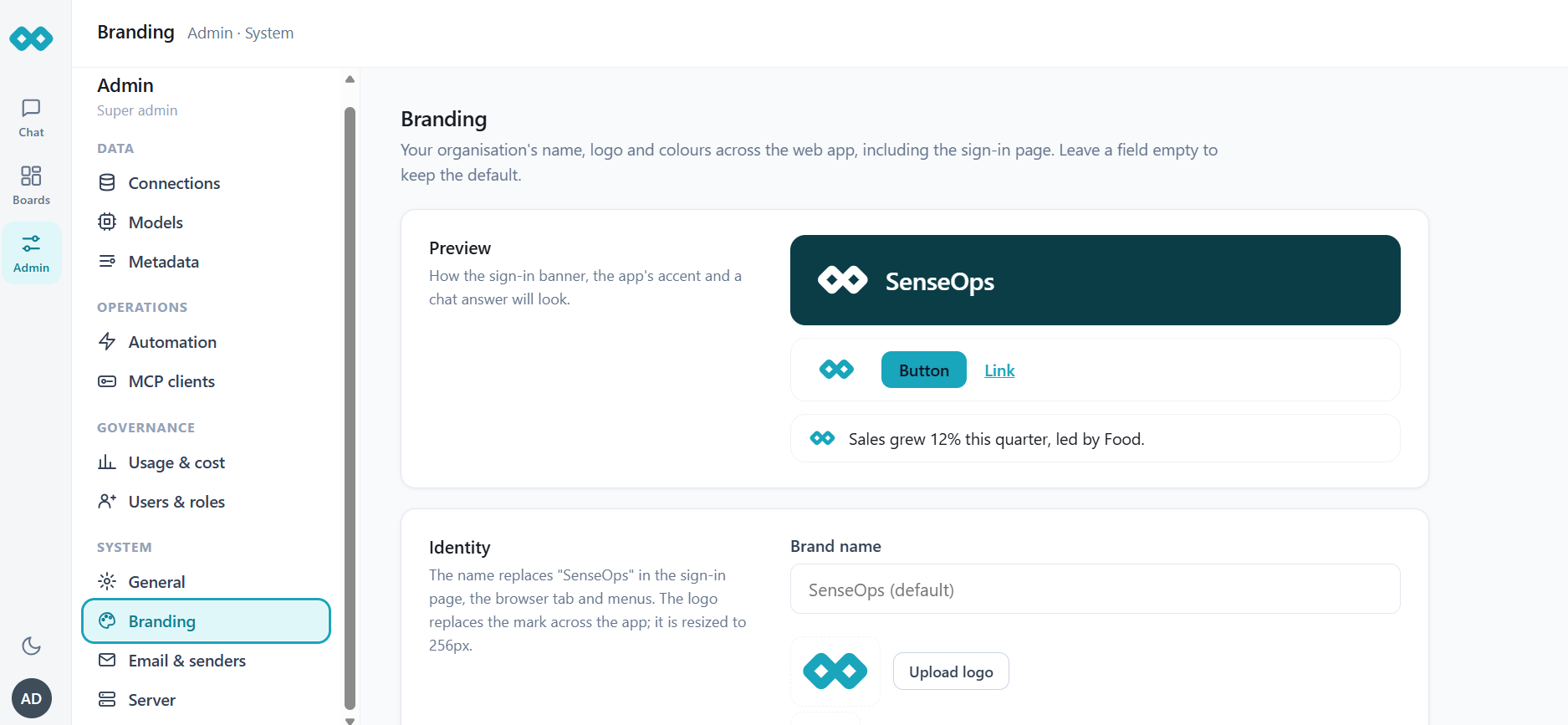
Preview
The Preview section displays how the configured branding will appear in the application. It includes a sample sign-in banner, interface elements such as buttons and links, and a sample chat response.
Use the preview to review the appearance of the organisation's branding before saving changes.
Identity
The Identity section lets administrators customise the name and logos displayed throughout the application.
Brand Name
Enter the organisation's preferred name in the Brand name field.
The configured name replaces "SenseOps" on the sign-in page, in the browser tab, and in menus. If the field is left empty, the default name is retained.
Upload Logo
Use Upload logo to select the organisation's logo.
The uploaded logo replaces the default mark across the application. The logo is resized to 256 pixels.
Upload Chat Icon
Use Upload chat icon to select a square icon for chat-related displays.
The chat icon appears beside chat answers and in the browser tab. If no separate chat icon is uploaded, the application uses the logo instead.
Colours
The Colours section allows administrators to customise the sign-in banner and the application's accent colours.
Banner Colour
Specify the desired banner colour using the Banner colour field.
The banner colour is used for the left panel of the sign-in page. Text on the banner adjusts to appear dark on a light colour.
The default banner colour is #0b3d47.
Accent Colour
Specify the desired accent colour using the Accent colour field.
The accent colour is applied to buttons, links, and active navigation elements throughout the application.
The default accent colour is #19a5bc.
Saving Branding Changes
After making the required changes, review the preview and use the available actions:
- Save branding: Saves the configured branding settings.
- Discard changes: Discards unsaved changes.
- Reset all to default: Resets the branding settings to their default values.
Leave fields empty when you want to retain the corresponding default branding value.