Dashboards
The Dashboards section in AskSenseOps lets you access, view, and manage saved dashboards. You can organize dashboards using tags, mark favourites, share dashboards with other users, schedule email deliveries, and customize dashboard themes.
Accessing Dashboards
Select Boards from the main navigation to open the dashboard section.
The dashboard list provides the following views:
- All: View dashboards available in the list.
- Mine: View dashboards you own.
- Shared: View dashboards shared with you.
- Starred: View dashboards marked as favourites.
Use the search option to find a dashboard by name. Dashboards may also be grouped by tags, with the refresh time displayed for each dashboard.
Opening a Dashboard
Select a dashboard from the list to open it in the main viewing area.
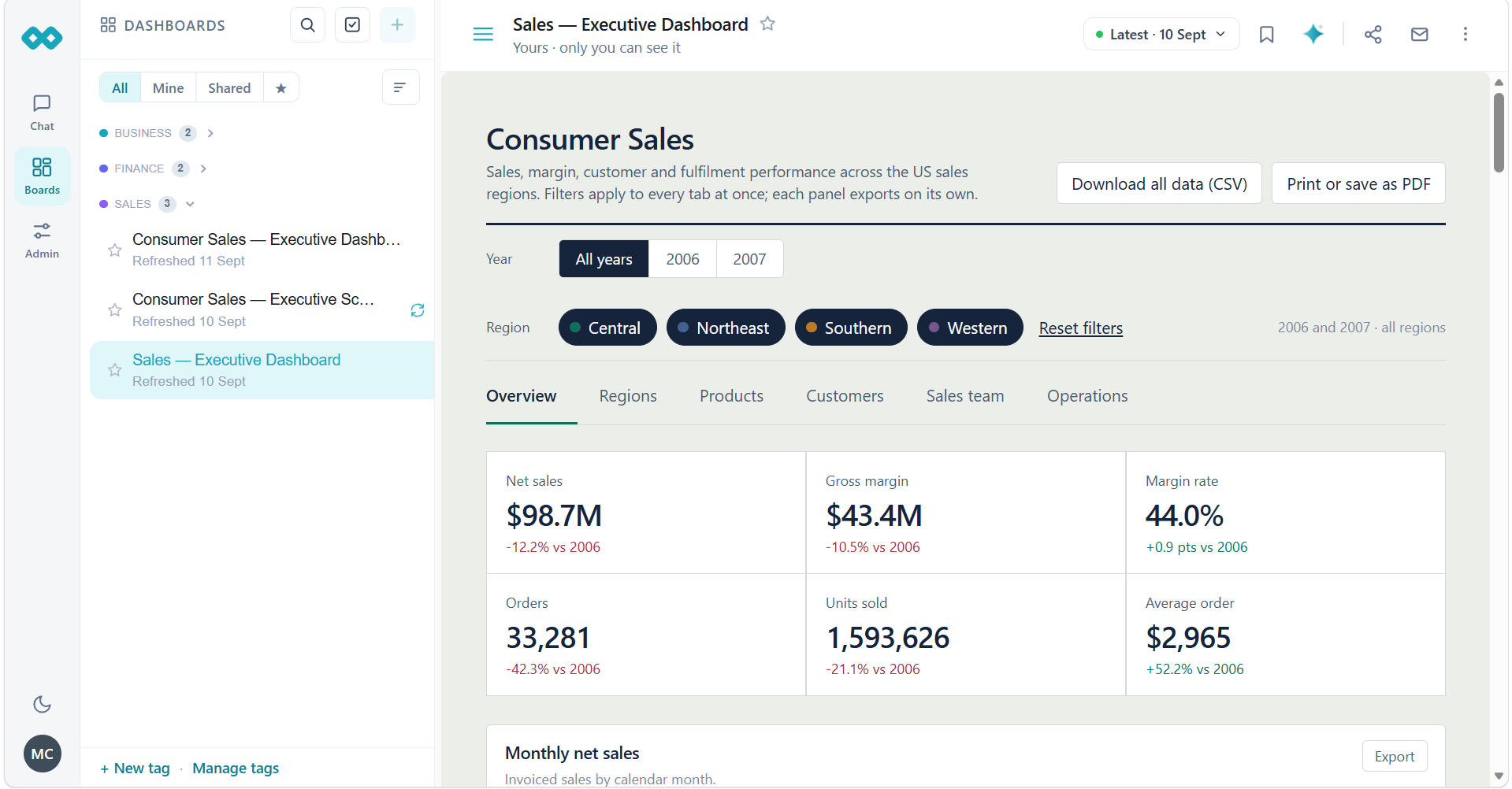
The dashboard header displays the dashboard name, ownership information, refresh details, and available controls.
Dashboard content may include:
- Summary metrics and key performance indicators.
- Charts and other visualizations.
- Filters for exploring data.
- Tabs for navigating between different dashboard views.
The available content depends on the selected dashboard.
Using Filters
Select the required filter values to explore the data displayed in the dashboard. Some dashboards provide a reset option to restore the filters to their default selections.
Filters may apply across multiple tabs, depending on the dashboard configuration.
Navigating Dashboard Tabs
Select a tab to view its corresponding charts, metrics, and other content.
Viewing Refresh Information
The dashboard header displays the available refresh information, including the latest refresh status or time.
Use the refresh control when you need to refresh the dashboard. The displayed data may depend on the latest available data from the connected source.
Managing Dashboards
Open the options menu next to a dashboard in the list to access its management actions.
Adding a Tag
Select Add tag to associate a tag with a dashboard. Tags help organize dashboards into categories.
You can also use New tag and Manage tags at the bottom of the dashboard list to create and manage tags.
Starring a Dashboard
Select Star to mark a dashboard as a favourite. Starred dashboards appear in the Starred view.
To remove a dashboard from favourites, select Unstar from its options menu.
Renaming a Dashboard
Select Rename to open the Rename & description dialog.
Update the dashboard name and, if required, its description. Select Save to apply the changes or Cancel to discard them.
Changing the Dashboard Theme
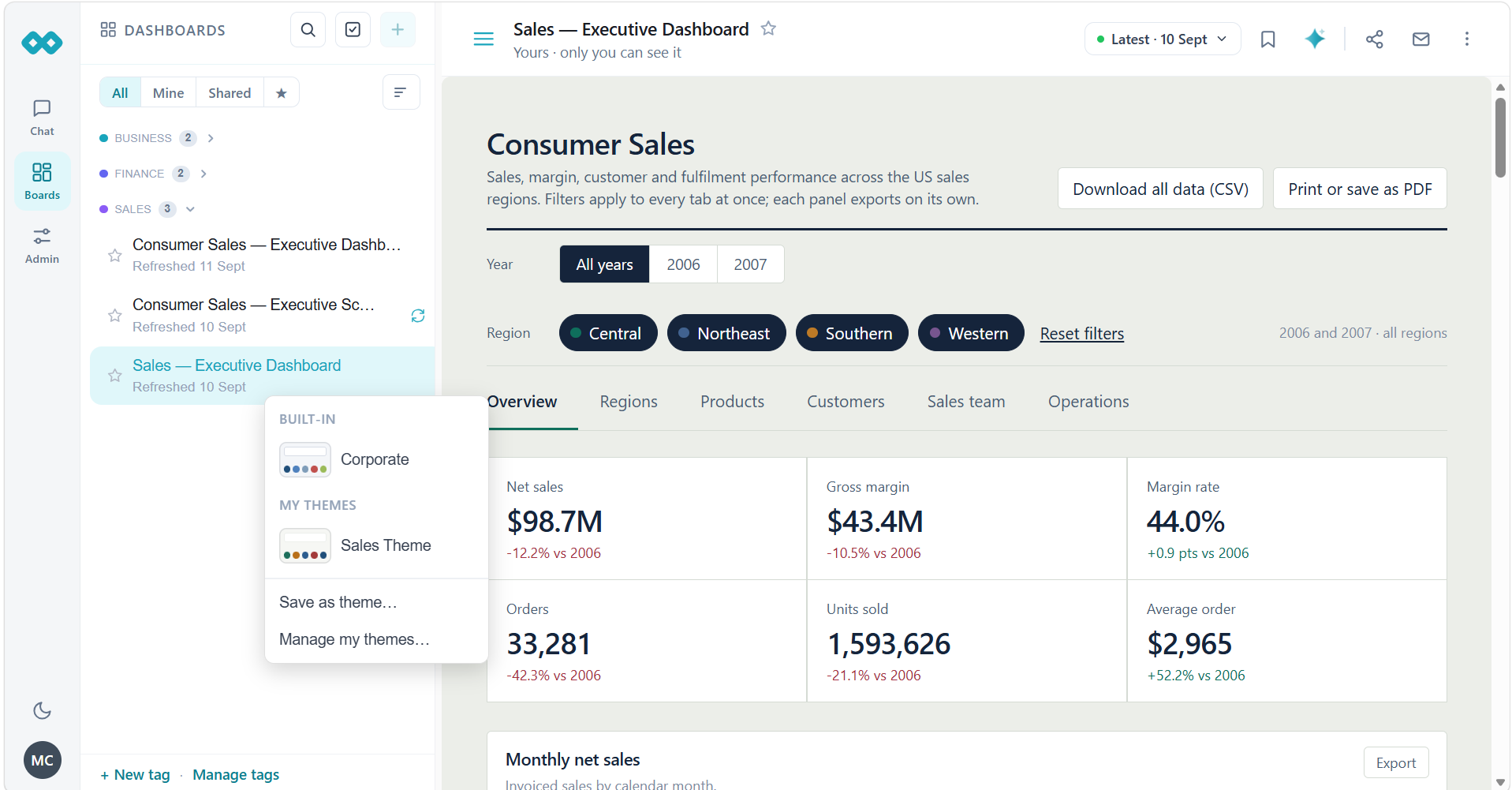
Select Theme to view the available themes.
You can choose a built-in theme or one of your saved themes. Use Save as theme to save the current theme configuration, or Manage my themes to manage your saved themes.
Duplicating a Dashboard
Select Duplicate to create a copy of the dashboard.
Deleting a Dashboard
Select Delete to remove a dashboard. Review the confirmation prompt, if displayed, before proceeding.
Sharing a Dashboard
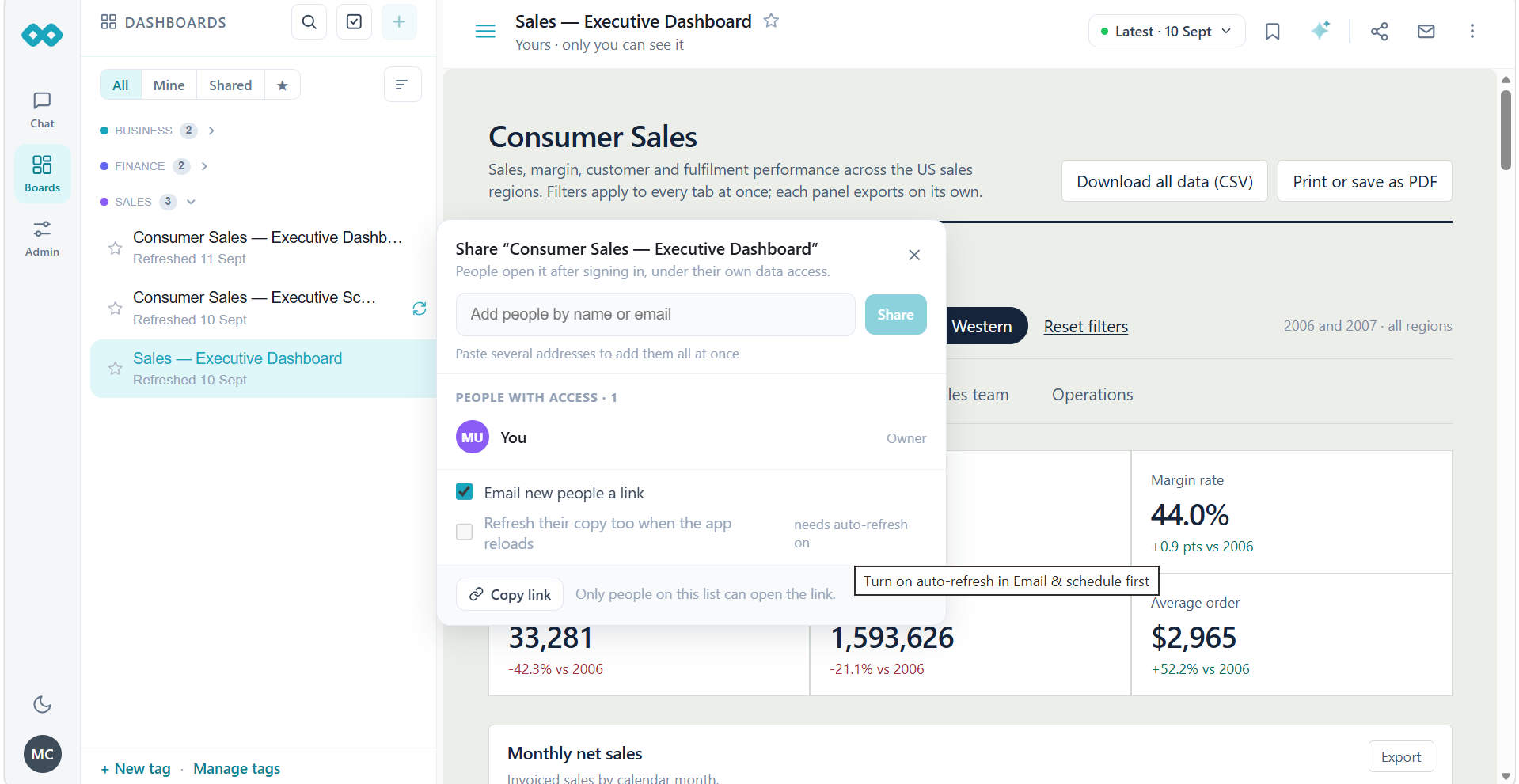
You can share a dashboard with other users from the dashboard options menu or the share icon in the dashboard header.
- Open the dashboard and select Share.
- Enter the names or email addresses of the people you want to share it with. Multiple email addresses can be added at once.
- Select Share to grant access.
The sharing dialog displays the people who already have access and their roles, such as Owner.
Additional options include:
- Email new people a link: Send a link to newly added users.
- Refresh their copy too when the app reloads: Refresh shared copies when the source app reloads. This option requires auto-refresh to be enabled.
- Copy link: Copy the dashboard link. The link is available only to people who have been granted access.
People opening the link must sign in and have the required access to view the dashboard.
Emailing and Scheduling Dashboard Delivery
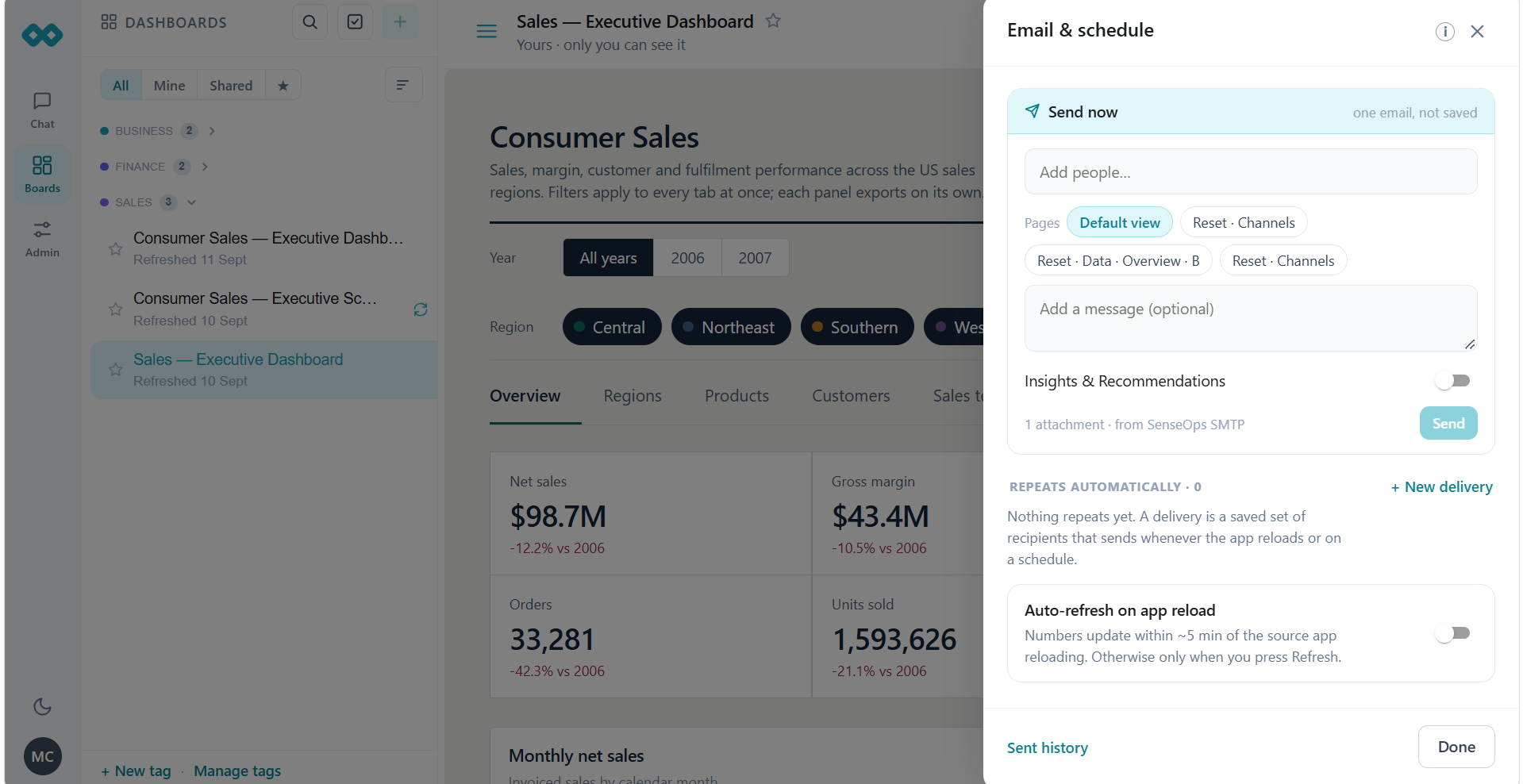
Select Email from the dashboard options menu or the email icon in the dashboard header to open Email & schedule.
Sending an Email
- Enter the recipients in the Add people field.
- Select the dashboard pages to include in the email.
- Enter an optional message.
- If required, enable Insights & Recommendations.
- Select Send to send the email.
The panel displays the attachment information and the configured email sender.
Creating a Scheduled Delivery
The Email & schedule panel lets you configure recurring dashboard deliveries.
Select New delivery under Repeats automatically to create a saved delivery configuration. A delivery stores the recipients and sends the dashboard when the configured reload or schedule conditions are met.
Configuring Auto-refresh
Enable Auto-refresh on app reload if you want dashboard numbers to update after the source app reloads.
When enabled, numbers update within approximately five minutes of the source app reloading. Otherwise, the dashboard updates when you manually select Refresh.
Use Sent history to review previous email deliveries.
Dashboard Toolbar
When a dashboard is open, the header provides additional controls.
Refresh
Use the refresh control to refresh the dashboard and access the latest available data.
Bookmark
Select the bookmark icon to access the dashboard's bookmark functionality.
Insights
Select the Insights icon in the dashboard header to open the Insights panel for the current dashboard.
The panel provides a generated summary of the dashboard, highlighting key findings, trends, and potential concerns.
The Insights panel includes:
- Dashboard summary: A high-level overview of the dashboard's key findings.
- Alerts and highlights: Important trends or changes that may require attention.
- Key insights: A list of findings grouped by category, with indicators such as Strength, Watch, and Context.
- Regenerate: Select Regenerate to generate an updated set of insights.
Review the generated insights to understand important patterns and changes in the dashboard data.
Share
Select the share icon to manage dashboard access, add people, and copy the dashboard link.
Select the email icon to send the dashboard by email or configure recurring deliveries.
The available controls and actions may vary depending on the dashboard and your permissions.