Web Server Installation
AskSenseOps provides a web interface where you can interact with your data, explore insights, and work with analytics. You can use AskSenseOps directly through the web interface or connect it to supported platforms using the Qlik Sense Extension and MCP clients.
This guide walks you through installing the AskSenseOps Web Server and completing the initial setup so you can start using the application.
Installation
Step 1: Obtain and Extract the Build
Obtain the AskSenseOps build package and extract it to a suitable location on your server.
Once the extraction is complete, open the extracted folder. You will find the files required to install and start the AskSenseOps Web Server.
Step 2: Install the AskSenseOps Service
Before starting AskSenseOps, install the service using the provided batch file.
- Open the extracted AskSenseOps build folder.
- Open Command Prompt as Administrator.
- Navigate to the extracted build folder.
- Run the following command:
service_install.bat
- Wait for the installation to complete before proceeding.
Step 3: Start the AskSenseOps Web Server
Once the service is installed, start the server to access the AskSenseOps setup page.
- From the build folder, run the following command:
start.bat
- Wait for the server to start.
- Open your web browser and navigate to:
http://localhost:3010/setup
The AskSenseOps setup page opens in your browser. Follow the next steps to configure the database and create your administrator account.
Step 4: Configure the Database
AskSenseOps uses PostgreSQL to store application configuration and chat data. You must provide the database connection details before completing the setup.
On the Configure Database page, enter the following details:
| Field | Description |
|---|---|
| Host | Enter the hostname of the PostgreSQL server. If PostgreSQL is running on the same machine, enter localhost. |
| Port | Enter the PostgreSQL port. The default port is 5432. |
| Database Name | Enter the name of the database to be used by AskSenseOps. |
| Username | Enter your PostgreSQL username. |
| Password | Enter the password associated with the username. |
After entering the details:
- Click Test Connection to check whether AskSenseOps can connect to the database.
- Confirm that the connection test is successful.
- Click Save & Continue to save the database configuration and proceed to the next step.
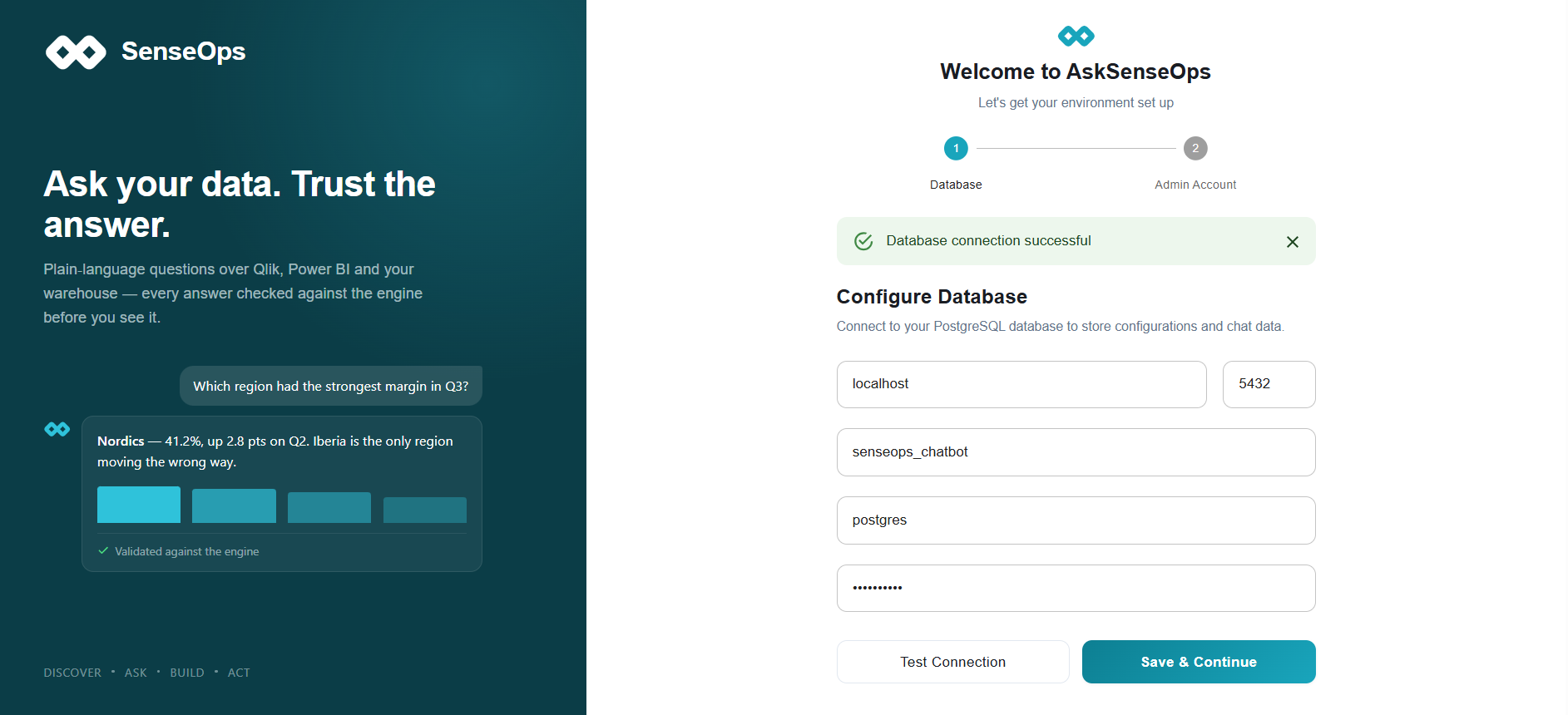
If the connection test fails, check that the database is available and verify the hostname, port, database name, username, and password before trying again.
Step 5: Create the Administrator Account
Next, create a local administrator account to access and manage AskSenseOps.
On the Create Admin Account page, enter the following details:
| Field | Description |
|---|---|
| Username | Enter a username for the local administrator account. |
| Display Name | Enter a display name. This field is optional. |
| Password | Enter a password for the account. |
| Confirm Password | Enter the password again to confirm it. |
Once you have entered the details:
- Verify that the username and password are correct.
- Click Create Admin & Finish Setup to complete the initial setup.
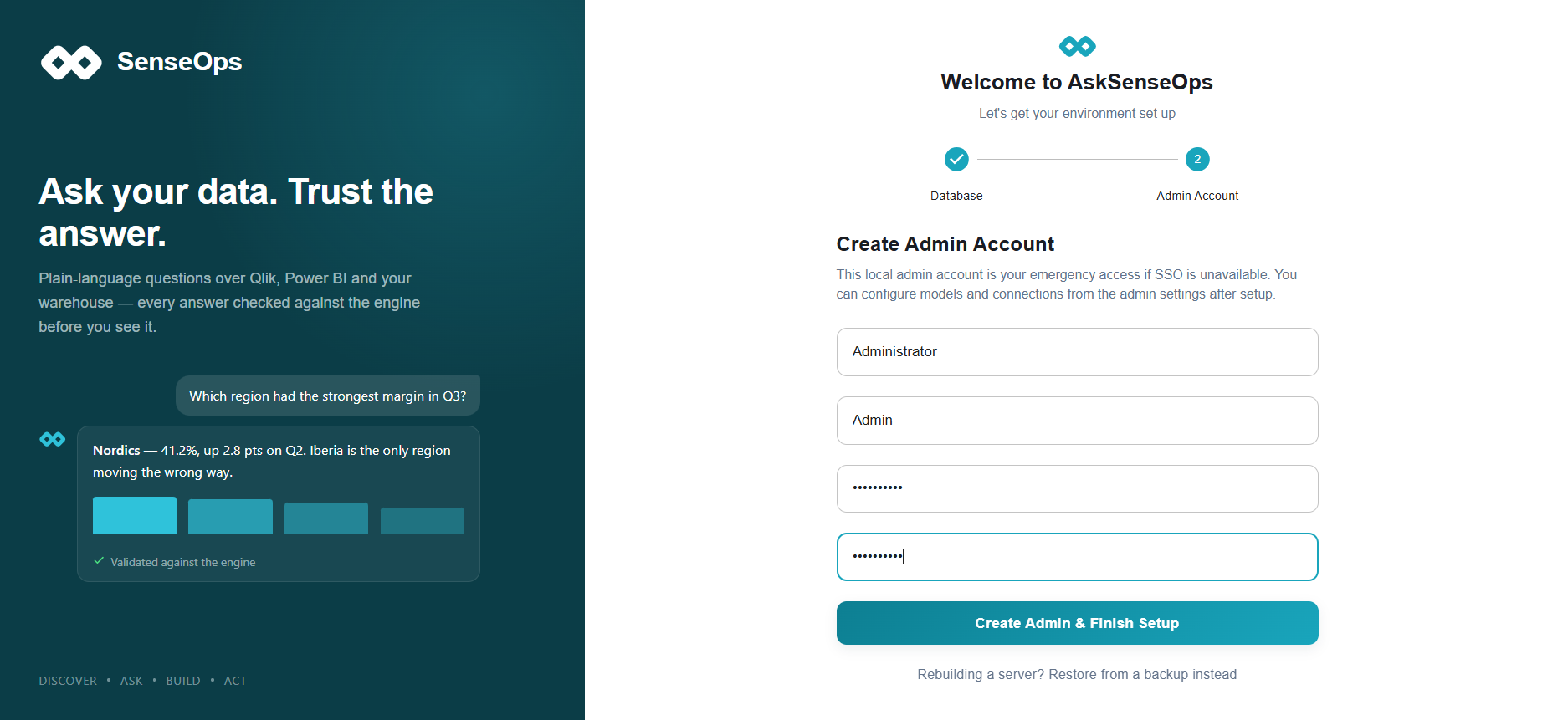
The local administrator account provides emergency access when SSO is unavailable. It can also be used to configure models and connections through the admin settings.
Accessing AskSenseOps
Once the initial setup is complete, you can access AskSenseOps through its web interface.
Open your browser and navigate to:
http://localhost:3010
You can now continue with the application configuration and begin using AskSenseOps.
If you want to access AskSenseOps through other platforms, you can also set up the following integrations:
- Qlik Sense Extension Installation — to use AskSenseOps within Qlik Sense.
- MCP Integration Setup — to connect supported MCP clients to AskSenseOps.
These integrations provide additional ways to work with AskSenseOps. You can use the web interface independently of these integrations.