Chat
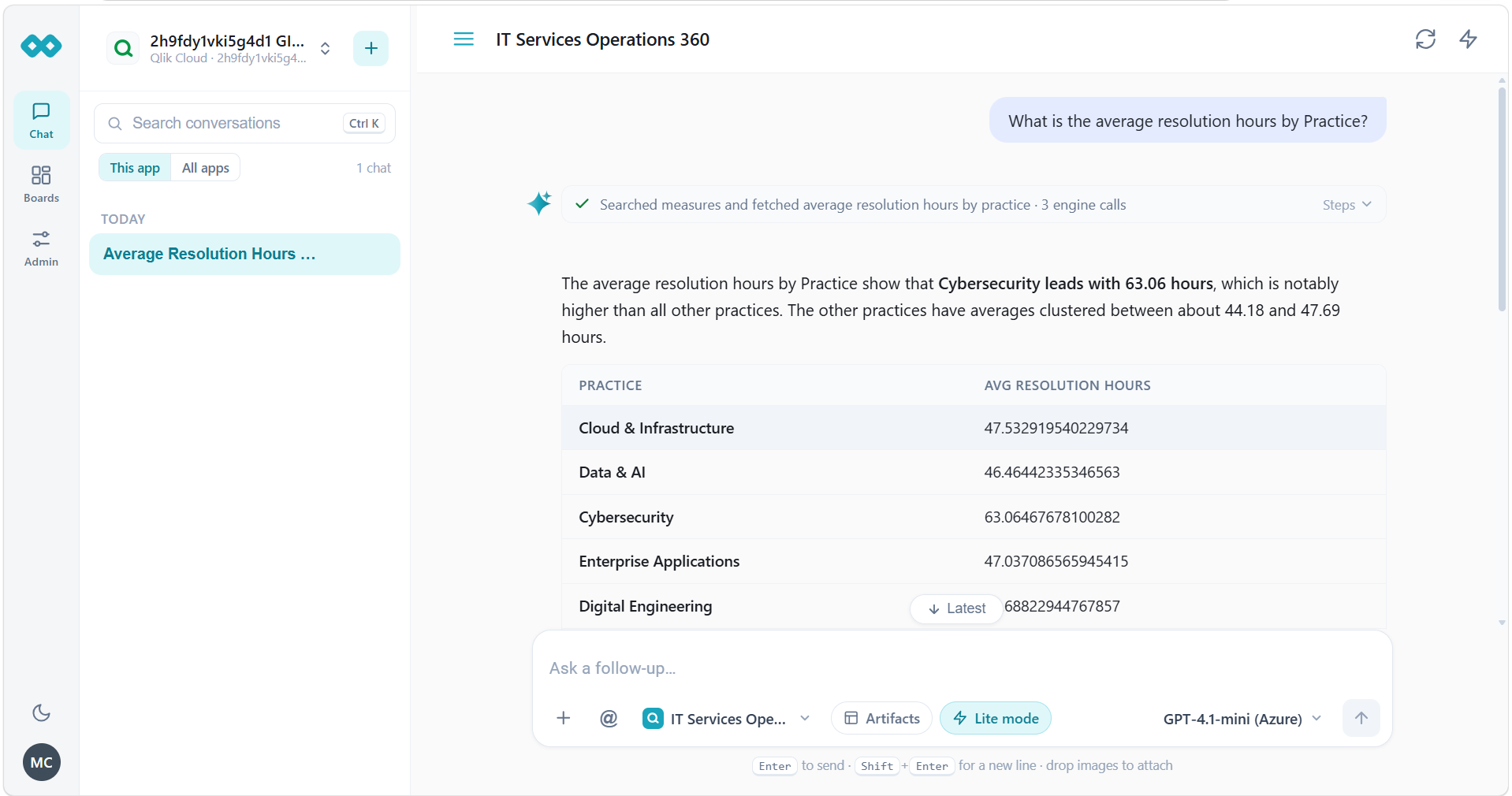
The Chat section lets you interact with your connected BI platform using natural-language questions. You can explore data, reference BI items, view application insights, and run configured actions.
Opening Chat
Select Chat from the main navigation to open the chat interface. It includes a conversation list, chat area, and message composer.
Selecting a BI App
Select the relevant BI app using the app selector. The selected app provides context for your questions and determines which application's data and content you are working with.
Asking Questions
- Open Chat and select the relevant BI app.
- Enter your question in the message composer.
- Submit the question and review the response.
- Ask follow-up questions to explore the results further.
Tagging BI Items
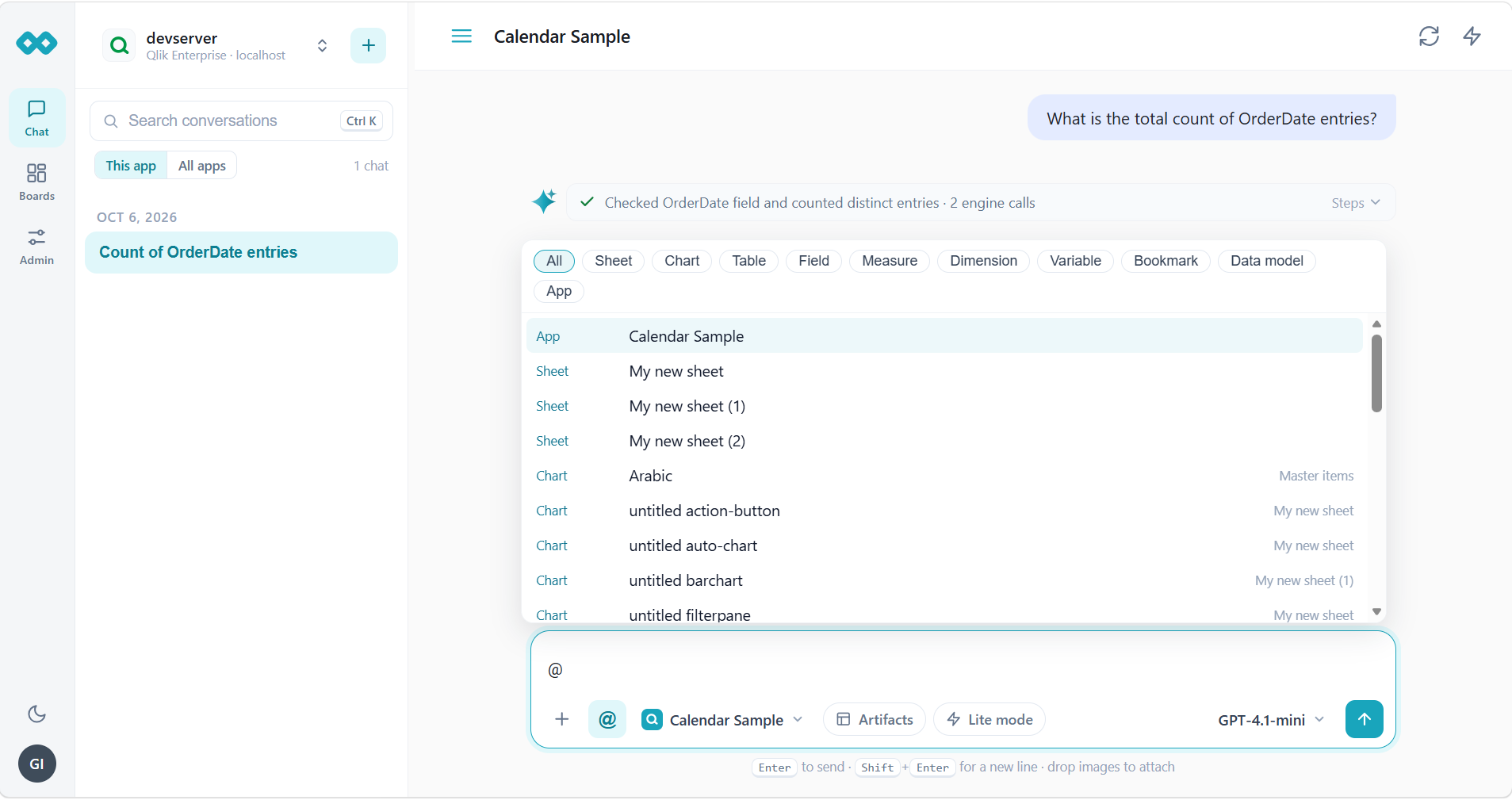
Type @ in the message composer to browse and reference available BI items in your question.
Available categories include App, Sheet, Chart, Table, Field, Measure, Dimension, Variable, Bookmark, and Data model.
Select an item and enter your question to focus the conversation on that specific context.
Using Lite and Deep Modes
Use the Lite mode toggle in the message composer to choose the conversation mode.
- Lite mode enabled: Uses Lite mode for the conversation.
- Lite mode disabled: Uses Deep mode by default.
Using Artifacts
Select Artifacts in the message composer when you want AskSenseOps to generate visual content as part of the conversation.
Managing Conversations
Use the conversation search field to find previous conversations. Select This app to view conversations associated with the current app or All apps to view conversations across apps. Select a conversation to reopen it.
Using Actions
Actions let you perform configured tasks directly from a chat conversation.
Configure Actions
Before using an action in Chat, configure the corresponding automation in the Admin section.
- Open Admin Automation.
- Configure the required automation and its action details.
- Save the configuration.
Once configured, the action becomes available through the action shortcut in Chat, subject to its requirements and the context of the conversation.
Run an Action
- Open the relevant conversation and select the action shortcut.
- Choose an available action from the list.
- Complete the required inputs.
- Review the data preview and confirmation details.
- Select the action's confirmation button to proceed, or select Cancel to stop.
The action panel displays the information required to execute the selected action. Some actions may be unavailable if the current conversation does not contain the required context. Follow the guidance displayed in the interface to resolve any missing information.