Metadata
The Metadata section helps administrators manage metadata quality, review user feedback, configure metadata governance, and explore source data models. Settings can be maintained for individual connections, with organization-level defaults providing a common baseline.
To access Metadata, open Admin and select Metadata under Data.
Selecting a Connection
Use the Connection dropdown to select the Qlik connection whose metadata you want to manage. Select Refresh to refresh the available information.
The Metadata page contains five tabs:
- Feedback: Review and manage metadata-related feedback.
- Metadata Quality: Review metadata quality scores and synchronize metadata.
- Data model: Explore source tables, fields, relationships, and aliases.
- Settings: Configure metadata governance and quality settings for the selected connection.
- Org defaults: Define default metadata settings across the organization.
The page also displays the governance status of the selected connection. When governance is off, chat uses raw metadata for that connection.
Feedback
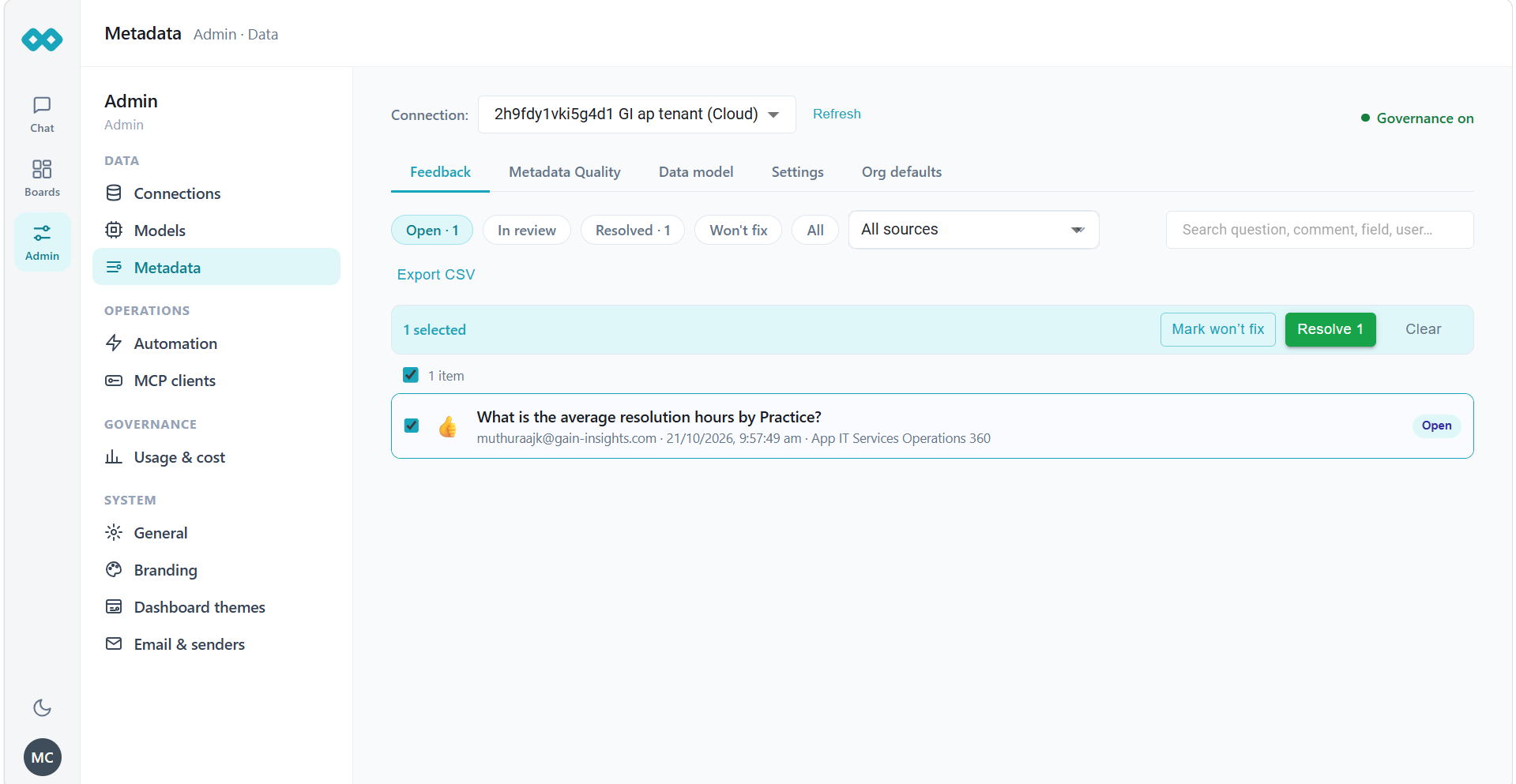
The Feedback tab provides a workspace for reviewing metadata-related feedback.
Filtering Feedback
Use the available status filters:
- Open: Feedback awaiting review.
- In review: Feedback currently being reviewed.
- Resolved: Feedback that has been resolved.
- Won't fix: Feedback that will not be addressed.
- All: Feedback across statuses.
Use the app dropdown to filter feedback by application. Search by question, comment, field, or user.
Select Export CSV to export the feedback list.
When no feedback matches the selected filters, the page displays an empty-state message.
Metadata Quality
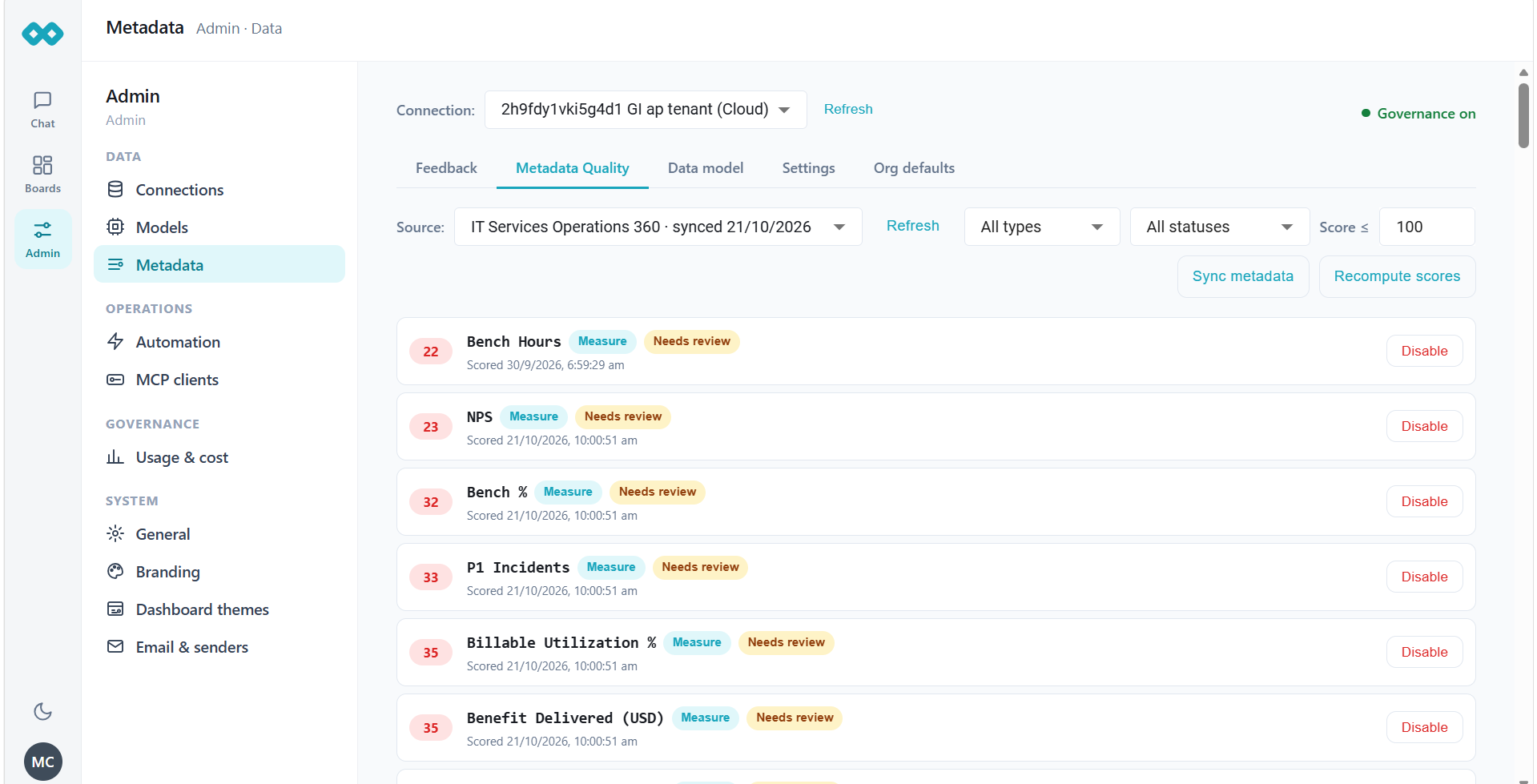
The Metadata Quality tab lets administrators review the quality of synchronized metadata for applications associated with the selected connection.
Selecting an Application
Use the App dropdown to select an application. Select Refresh to refresh the available information.
Applications become available after their metadata has been synchronized. To initiate synchronization, open a Qlik application through Chat on the selected connection.
Filtering Metadata Quality
Use the following controls to narrow the results:
- All types: Filter metadata assets by type.
- All statuses: Filter assets by quality status.
- Score: Set the maximum score to include in the results.
Synchronizing Metadata
- Sync metadata: Synchronize metadata for the selected application.
- Recompute scores: Recalculate quality scores using the configured scoring settings.
Data Model
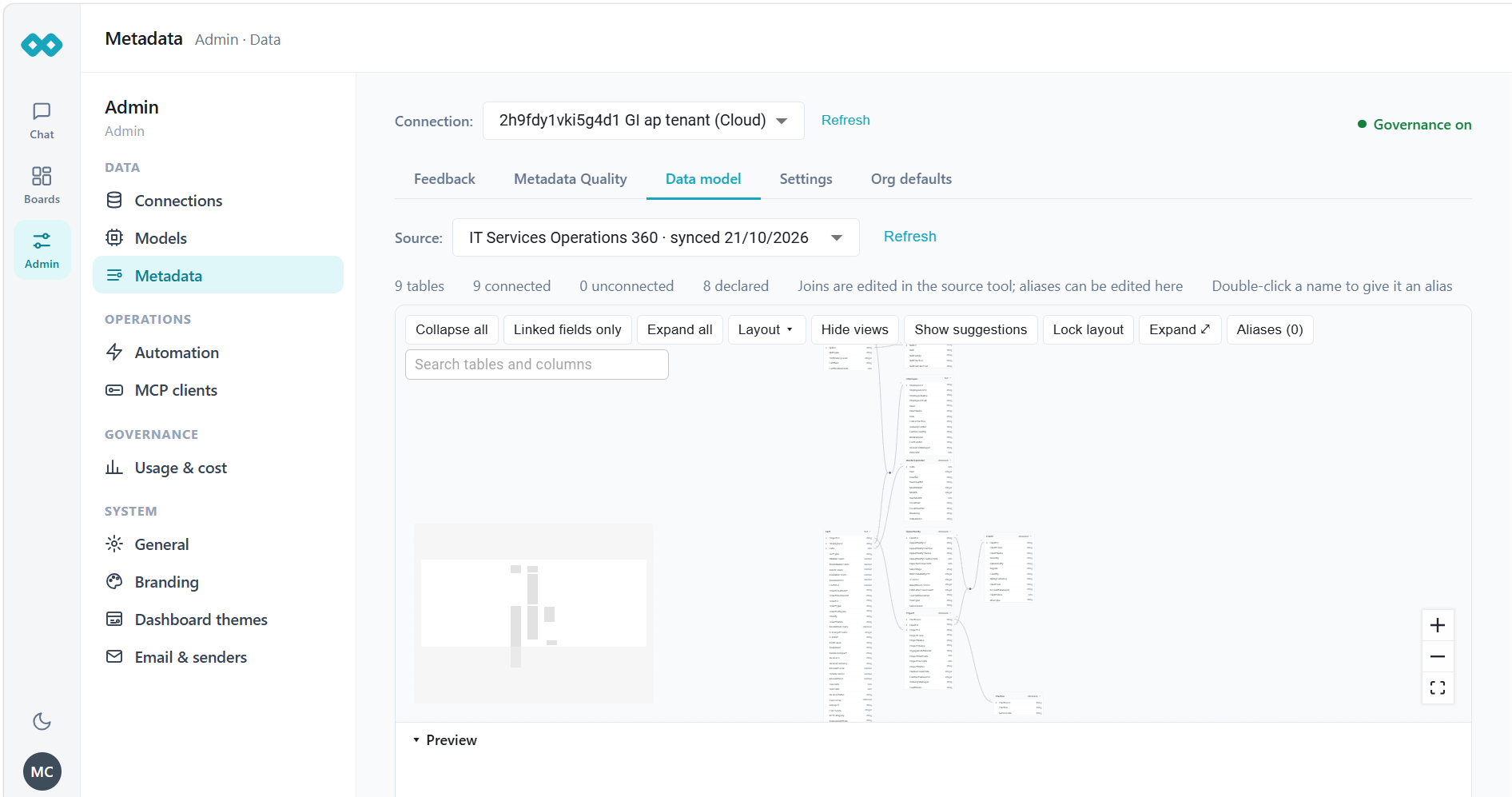
The Data model tab provides a visual representation of the tables, fields, and relationships in the selected source. Use this view to explore the data structure and review how tables are connected.
Selecting a Source
Use the Source dropdown to select the source whose data model you want to view. The source list displays the source name and its last synchronization date.
Select Refresh to refresh the available source information.
The page displays a summary of the data model, including the number of tables, connected tables, unconnected tables, and declared tables.
Exploring the Data Model
The data model appears as a visual diagram containing tables, fields, data types, and relationships.
The available controls include:
- Collapse all: Collapse expanded tables.
- Linked fields only: Display only linked fields.
- Expand all: Expand all tables.
- Layout: Change the diagram layout.
- Hide views: Hide view objects.
- Show suggestions: Display available suggestions.
- Lock layout: Lock the current layout.
- Expand: Expand the diagram view.
- Aliases: View and manage field aliases.
Use the search field to find tables and columns by name.
Managing Relationships and Aliases
Relationships between tables are based on joins defined in the source tool. To change these joins, update the source configuration in that tool.
To assign an alias, double-click a table or field name where supported. Select Aliases to review and manage configured aliases.
Navigating the Diagram
Use the zoom controls to zoom in, zoom out, or fit the diagram to the available viewing area. Move around the diagram to inspect tables and relationships.
Expand Preview below the diagram to access the available preview area.
Settings
The Settings tab contains configuration options for the selected connection.
General
Use Enable governance for this connection to control whether metadata governance is applied.
When enabled, chat uses curated descriptions, synonyms, and status labels. Deprecated fields display warnings, and administrators can request description and synonym suggestions through AI Suggest.
When disabled, chat uses raw metadata. The governance settings remain saved but are not applied.
Scoring
Scoring settings determine how metadata assets are evaluated.
Default scoring weights:
| Criterion | Weight |
|---|---|
| Name Clarity | 25 |
| Description Quality | 30 |
| Synonym Coverage | 15 |
| Sample Expression Coverage | 15 |
| Category Assigned | 10 |
| Recent Feedback Hits | 5 |
| Total | 100 |
Adjust the weights while keeping the total at 100. Select Reset to restore defaults.
Default score thresholds:
- Needs review: Below 50.
- Certified: 80 or higher.
Status retrieval multipliers control how metadata status affects retrieval similarity:
| Status | Multiplier |
|---|---|
| Unscored | 1.0 |
| Certified | 1.2 |
| Needs review | 0.8 |
| Deprecated | 0.3 |
Curation Taxonomy
Manage the categories available for metadata assets. Default categories include Customer, Financial, Geography, Time, Product, Operational, and PII.
Connections inherit organization-level categories and can add their own categories but cannot remove inherited organization categories.
Metadata Freshness
- Auto-sync this connection: Synchronize metadata automatically when the source reloads. This option becomes available after metadata has been synchronized.
- Auto Re-sync Stale Metadata During Chat: Synchronize metadata before answering when the source has reloaded since the last synchronization. If disabled, chat uses existing metadata and discloses that it may be out of date.
Field Roles
Configure how identifier fields are handled. The default enforcement option is Withhold identifiers, cap large codes.
Identifier fields are excluded from discovery and blocked as breakdowns, but remain available for filtering and counting. Readable business codes are subject to a row limit.
The default Business-code Breakdown Row Cap is 200.
AI Suggest
Use Enable Suggest to control whether administrators can request on-demand descriptions and synonym suggestions. The feature is enabled by default in the organization-level settings.
Select the model under LLM Model. The default is Default (use the connection's chat model). Suggestions are generated on demand rather than in the background.
Section Access
Use Apps with Section Access to identify applications that use Qlik section access.
Selected applications use per-user metadata files. Applications that are not selected use a shared app-level metadata file.
To configure this setting, select Add apps, choose the required applications, and select Apply.
Org Defaults
The Org defaults tab defines metadata settings for the organization. Connections inherit these values unless they override the corresponding settings.
General
Use Enable governance by default for new connections to determine whether new connections start with governance enabled. This does not automatically change existing connections.
Scoring
Set the default scoring weights, score thresholds, and status retrieval multipliers described in the Settings section. Use Reset to restore default values for a setting group.
Curation Taxonomy
Manage organization-wide metadata categories. Connections inherit these categories and may extend them but cannot remove organization-defined categories.
Field Roles
Set the default identifier enforcement policy and business-code breakdown row cap.
Metadata Freshness
Configure the organization default for automatically re-synchronizing stale metadata during chat.
AI Suggest
Configure whether AI Suggest is enabled by default for connections. Individual connections can override this setting.
Saving Changes
Use the available controls to manage changes:
- Save settings: Save changes for the selected connection.
- Save org defaults: Save organization-wide defaults.
- Discard: Discard unsaved changes.
- Reset: Restore default values for the relevant setting group.
Some options save immediately. Follow the status message displayed by the interface to confirm whether changes have been saved.